
圖表視圖
openpine-chart crate 提供了 ChartView —— 一個自包含的圖表組件,可管理多個 Pine 腳本、處理使用者互動,並透過跨平台的繪圖介面渲染所有內容。它建基於圖表渲染中描述的 Chart 資料模型。
openpine-vm 提供對腳本執行的底層控制,而 openpine-chart 則處理完整的生命週期:在背景編譯腳本、佈局窗格、渲染 K 線和繪圖、以及回應滑鼠事件。
添加依賴
[dependencies]
openpine-chart = { git = "https://github.com/longbridge/openpine.git" }
架構
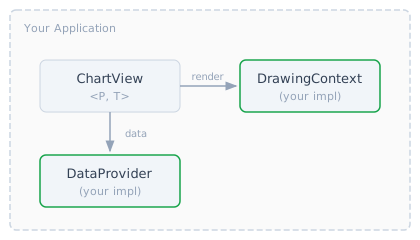
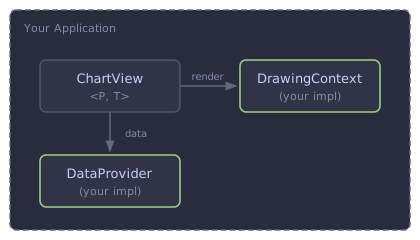
你需要提供兩樣東西:
DataProvider— 提供 K 線資料(參閱資料提供者)DrawingContext— 適用於你平台的 2D 繪圖後端
ChartView 處理其餘所有事務:腳本編譯、執行、佈局、渲染和使用者互動。
建立 ChartView
use openpine_chart::{ChartView, ChartEvent, Size, Theme};
use openpine_vm::TimeFrame;

let mut cv = ChartView::new(
    provider,                        // impl DataProvider
    |fut| { tokio::spawn(fut); },    // async task spawner
    "NASDAQ:AAPL",                   // symbol
    TimeFrame::days(1),              // timeframe
    Size { width: 800.0, height: 600.0 },
    move |event| {                   // event callback
        match event {
            ChartEvent::Draw => { /* trigger a repaint */ }
            ChartEvent::EditScript { tag, id } => { /* open editor */ }
            ChartEvent::RemoveScript { tag, id } => { /* confirm removal */ }
            _ => {}
        }
    },
);

cv.set_theme(Theme::dark());  // or Theme::light()
cv.set_locale("en");
泛型參數
ChartView<P, T> 具有以下泛型參數:
| 參數 | 描述 |
|---|---|
P: DataProvider | 你的 K 線資料來源 |
T: Clone + PartialEq | 使用者自訂的「標籤」類型,附加到每個腳本上。可使用 String 作為腳本名稱、UUID,或 () 表示不需要標籤。 |
標籤讓你可以在自己的領域模型中識別腳本,無需直接追蹤 ScriptId 值。
實作 DrawingContext
為你的渲染平台(Canvas 2D、Skia、Cairo 等)實作 DrawingContext trait:
use openpine_chart::*;
use openpine_vm::visuals::{Color, FontFamily, TextFormatting};

struct MyCanvas { /* your platform context */ }

impl DrawingContext for MyCanvas {
    // Canvas operations
    fn clear_rect(&mut self, rect: Rect) { /* ... */ }

    // Colors & styles
    fn set_fill_color(&mut self, color: Color) { /* ... */ }
    fn set_stroke_color(&mut self, color: Color) { /* ... */ }
    fn set_line_width(&mut self, width: f64) { /* ... */ }
    fn set_line_dash(&mut self, pattern: &[f64]) { /* ... */ }
    fn set_fill_linear_gradient(
        &mut self, x0: f64, y0: f64, x1: f64, y1: f64, stops: &[(f64, Color)],
    ) { /* ... */ }

    // Text
    fn set_font(&mut self, size: f64, formatting: TextFormatting, family: FontFamily) { /* ... */ }
    fn set_text_align(&mut self, align: TextAlign) { /* ... */ }
    fn set_text_baseline(&mut self, baseline: TextBaseline) { /* ... */ }
    fn fill_text(&mut self, text: &str, x: f64, y: f64) { /* ... */ }
    fn measure_text(&self, text: &str) -> f64 { /* ... */ 0.0 }

    // Paths
    fn begin_path(&mut self) { /* ... */ }
    fn move_to(&mut self, x: f64, y: f64) { /* ... */ }
    fn line_to(&mut self, x: f64, y: f64) { /* ... */ }
    fn close_path(&mut self) { /* ... */ }
    fn arc(&mut self, x: f64, y: f64, radius: f64) { /* ... */ }
    fn arc_to(&mut self, x1: f64, y1: f64, x2: f64, y2: f64, radius: f64) { /* ... */ }
    fn stroke(&mut self) { /* ... */ }
    fn fill(&mut self) { /* ... */ }

    // Shapes
    fn fill_rect(&mut self, rect: Rect) { /* ... */ }
    fn stroke_rect(&mut self, rect: Rect) { /* ... */ }

    // Clipping (optional — default is no-op)
    fn set_clip(&mut self, rect: Option<Rect>) { /* ... */ }
}
set_clip(Some(rect)) 將繪圖限制在指定的矩形範圍內。後續呼叫 set_clip(Some(other)) 應取代先前的裁剪區域(而非取交集)。set_clip(None) 完全移除裁剪。
參考實作: 參閱 Web playground 中使用的 Canvas 2D 後端。
管理腳本
添加腳本
let id = cv.add_script(pine_source, "my-indicator".to_string());腳本以非同步方式編譯和執行。當腳本產生輸出後,圖表會觸發 ChartEvent::Draw。使用帶回呼的變體來處理錯誤:
let id = cv.add_script_with_complete(pine_source, tag, |result| {
    match result {
        Ok(()) => println!("Script ready"),
        Err(e) => eprintln!("Script failed: {e}"),
    }
});
移除腳本
cv.remove_script(id);
// or remove all:
cv.remove_all_scripts();
查詢腳本
// All scripts currently on the chart
let scripts: Vec<(String, ScriptId)> = cv.scripts();

// Find a script by its tag
if let Some(id) = cv.script_id_for_tag(&"my-indicator".to_string()) {
    // ...
}
渲染
在你的繪製/重繪回呼中呼叫 render:
fn on_paint(cv: &ChartView<MyProvider, String>, canvas: &mut MyCanvas) {
    cv.render(canvas);
}
當圖表需要重繪時(新資料到達、腳本完成、使用者捲動等),會觸發 ChartEvent::Draw。你的事件處理器應在收到此事件時觸發重繪。
使用者互動
將滑鼠/滾輪事件從你的 UI 框架轉發過來:
// Scroll/zoom
cv.on_wheel(delta, mouse_x);

// Pan by dragging
cv.on_drag(dx);  // dx in CSS pixels

// Hover (updates crosshair + cursor)
cv.on_mouse_move(x, y);

// Click (triggers toolbar button actions)
cv.on_mouse_down(x, y);  // returns true if a pane divider was hit
cv.on_mouse_up();
cv.on_click(x, y);

// Resize
cv.on_resize(Size { width: new_w, height: new_h });

// Cursor style (for your UI to update)
let cursor: &str = cv.cursor_at(x, y);  // "" or "ns-resize"
事件
on_event 回呼接收 ChartEvent<T>:
| 事件 | 描述 |
|---|---|
Draw | 圖表需要重繪 |
EditScript { tag, id } | 使用者點擊了腳本圖例上的 ✎ 編輯按鈕 |
RemoveScript { tag, id } | 使用者點擊了 ✕ 移除按鈕 |
ToggleVisibility { tag, id } | 使用者切換了腳本的可見性 |
ShowError { tag, error } | 使用者點擊了 ⚠ 錯誤圖示 |
ConfigureScript { tag, id, inputs } | 使用者點擊了 ⚙ 設定按鈕 |
腳本設定
當使用者點擊腳本圖例上的 ⚙ 按鈕時,圖表會觸發 ConfigureScript 事件,並附帶該腳本目前的 InputInfo 列表。你的應用程式應顯示設定 UI,並將變更套用回圖表。
設定資料模型
腳本的設定由兩部分組成:
pub struct ScriptConfig {
    /// Visual overrides per series graph (colors, styles, visibility).
    pub series_overrides: HashMap<SeriesGraphId, SeriesGraphOverride>,
    /// Input value overrides. Key = input index, value = JSON value.
    pub input_values: HashMap<usize, serde_json::Value>,
}
讀取目前狀態
// Original visual state of all series graphs (before overrides)
let configs: HashMap<SeriesGraphId, SeriesGraphConfig> = cv.graph_configs(id).unwrap();

// Current user overrides
let overrides: HashMap<SeriesGraphId, SeriesGraphOverride> = cv.script_overrides(id).unwrap();

// Full config (overrides + input values)
let config: &ScriptConfig = cv.script_config(id).unwrap();
套用變更
cv.set_script_config(id, new_config);
// or with completion callback:
cv.set_script_config_with_complete(id, new_config, |result| { /* ... */ });
行為:
- 如果只有
series_overrides變更:圖表會立即重新渲染,無需重新執行腳本。 - 如果
input_values變更:腳本會被中止並以新值重新啟動。
建構設定 UI
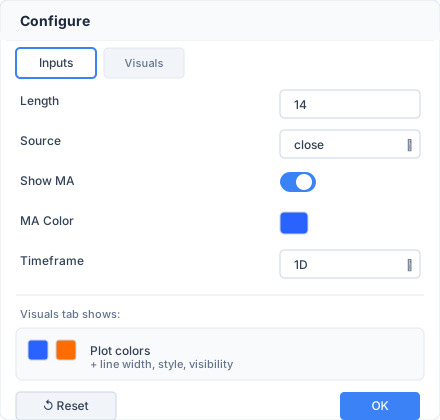
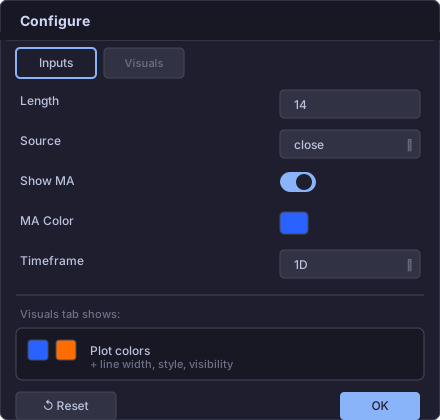
本節描述如何為腳本設定建構設定對話框。設計參考 TradingView 的指標設定對話框。
對話框結構
對話框有兩個分頁:
| 分頁 | 內容 | 顯示條件 |
|---|---|---|
| 輸入 | 腳本的 input.*() 參數 | inputs.len() > 0 |
| 視覺 | 序列圖視覺覆寫(顏色、樣式) | graph_configs 非空 |
對話框預設應顯示輸入分頁(如有輸入),否則顯示視覺分頁。
頁腳按鈕:
- 重設為預設值 — 清除所有覆寫並將輸入重設為原始值。
- 確定 — 關閉對話框(變更會立即套用,無需確認)。
輸入分頁
ConfigureScript 事件提供一個 Vec<InputInfo>:
pub struct InputInfo {
    pub idx: usize,                       // 從零開始的輸入索引(input_values 的鍵)
    pub title: Option<String>,            // 人類可讀的標籤
    pub tooltip: Option<String>,          // 懸停提示文字
    pub group: Option<String>,            // 分組標題(可選)
    pub kind: InputKind,                  // 類型特定的值和約束
    pub default_value: serde_json::Value, // 腳本原始預設值(用於「重設為預設值」)
}
根據 InputKind 變體渲染每個輸入:
Int { value, min, max, step, options } —— 數字輸入框。如果 options 非空,顯示下拉選單而非自由輸入框。遵循 min、max、step 約束。
Float { value, min, max, step, options } —— 帶小數步長(預設 0.1)的數字輸入框。options、min、max 行為與 Int 相同。
Bool { value } —— 開關切換。
Color { value } —— 色塊 + 顏色選擇器彈窗。顏色為 RGBA 格式的打包 u32:(R << 24) | (G << 16) | (B << 8) | A。顯示為填充矩形;點擊時開啟包含十六進制輸入和透明度滑桿的顏色選擇器。
Str { value, options } —— 文字輸入框。如果 options 非空,顯示下拉選單。
Source { value } —— 固定選項的下拉選單:open、high、low、close、hl2、hlc3、ohlc4、hlcc4。值為 SourceType 列舉。寫入 input_values 時,轉換為整數判別值:open=0、high=1、low=2、close=3、hl2=4、hlc3=5、ohlc4=6、hlcc4=7。
Enum { value, options } —— 下拉選單。options 為 Vec<(i64, String)> ——(判別值,顯示標籤)配對。在 input_values 中儲存判別值。
Symbol { value } —— 股票代碼的文字輸入框(如 "AAPL")。
TimeFrame { value, options } —— 下拉選單或文字輸入。值為 TimeFrame。如果 options 非空,顯示下拉選單。
Session { value, options } —— 交易時段字串的文字輸入框或下拉選單(如 "0930-1600")。
Time { value } —— 日期/時間選擇器。值為自紀元以來的毫秒數(i64)。使用腳本的交易所時區(可透過 cv.timezone() 取得)進行日期時間轉換。
TextArea { value } —— 多行文字區域。
套用輸入變更:
let mut config = cv.script_config(id).cloned().unwrap_or_default();
// For an Int input at index 0 with value 20:
config.input_values.insert(0, serde_json::json!(20));
// For a Source input, store the integer discriminant:
config.input_values.insert(1, serde_json::json!(3)); // close
cv.set_script_config(id, config);變更應立即套用(即時預覽)—— 圖表會重新執行腳本,完成後觸發 ChartEvent::Draw。
視覺分頁
視覺分頁顯示每個序列圖的視覺覆寫。取得資料:
let graph_configs: HashMap<SeriesGraphId, SeriesGraphConfig> = cv.graph_configs(id).unwrap();
let overrides: HashMap<SeriesGraphId, SeriesGraphOverride> = cv.script_overrides(id).unwrap();
SeriesGraphConfig 變體
SeriesGraphConfig 描述原始(覆寫前)視覺狀態。每個變體對應一種繪圖類型:
pub enum SeriesGraphConfig {
    Plot {
        title: Option<String>,
        colors: Vec<Option<Color>>,          // Distinct color slots
        line_width: i32,
        style: PlotStyle,
        line_style: PlotLineStyle,
    },
    PlotChar {
        title: Option<String>,
        colors: Vec<Option<Color>>,
        char_value: char,
        location: Location,
        size: Size,
    },
    PlotShape {
        title: Option<String>,
        colors: Vec<Option<Color>>,
        style: Shape,
        location: Location,
        size: Size,
    },
    PlotArrow {
        title: Option<String>,
        up_colors: Vec<Option<Color>>,       // Up-arrow color slots
        down_colors: Vec<Option<Color>>,     // Down-arrow color slots
    },
    PlotCandle {
        title: Option<String>,
        colors: Vec<Option<Color>>,          // Body color slots
        wick_colors: Vec<Option<Color>>,
        border_colors: Vec<Option<Color>>,
    },
    PlotBar {
        title: Option<String>,
        colors: Vec<Option<Color>>,
    },
    BackgroundColor {
        title: Option<String>,
        colors: Vec<Option<Color>>,
    },
    Fill {
        title: Option<String>,
        colors: Vec<Option<Color>>,
    },
}顏色插槽:colors 向量包含腳本使用的不重複顏色(按首次出現順序)。None 表示 na / 主題預設值。每個插槽在 SeriesGraphOverride::color_overrides 中有對應位置。
SeriesGraphOverride
pub struct SeriesGraphOverride {
    pub color_overrides: Vec<Option<Color>>,
    pub line_width: Option<i32>,
    pub style: Option<PlotStyle>,
    pub line_style: Option<PlotLineStyle>,
    pub char_value: Option<char>,
    pub shape: Option<Shape>,
    pub location: Option<Location>,
    pub size: Option<Size>,
    pub line_width_overrides: Vec<Option<i32>>,
    pub line_style_overrides: Vec<Option<PlotLineStyle>>,
    pub visible: bool,  // defaults to true
}
各圖表類型的 UI 控件
Plot(折線/面積/直方圖):
- 每個顏色插槽一個色塊。點擊開啟顏色選擇器。
- 每個插槽的線寬選擇器(1-4 像素按鈕)。
- 每個插槽的線條樣式選擇器(實線 / 虛線 / 點線)。
- 全域繪圖樣式下拉選單:Line、StepLine、Diamond、Histogram、Cross、Area、Columns、Circles、LineBr、AreaBr、StepLineBr。
- 可見性核取方塊。
PlotChar(字元標記):
- 色塊。
- 字元文字輸入(單個字元)。
- 位置下拉選單:AboveBar、BelowBar、Absolute、Top、Bottom。
- 大小下拉選單:Auto、Tiny、Small、Normal、Large、Huge。
PlotShape(圖形標記):
- 色塊。
- 圖形下拉選單:XCross、Cross、Circle、Diamond、Square、TriangleUp、TriangleDown、ArrowUp、ArrowDown、Flag、LabelUp、LabelDown。
- 位置下拉選單(與 PlotChar 相同)。
- 大小下拉選單(與 PlotChar 相同)。
PlotArrow(方向箭頭):
- 分開的色塊群組,標籤為「上升」和「下降」。
PlotCandle(OHLC K 線):
- 三個色塊群組,標籤為「實體」、「影線」和「邊框」。
PlotBar / BackgroundColor / Fill:
- 僅色塊。
所有圖表類型皆支援透過 visible: bool 的可見性切換。
顏色覆寫編碼
color_overrides 陣列與 SeriesGraphConfig 中的顏色插槽對齊:
- 單段類型(Plot、PlotChar、PlotShape、PlotBar、BackgroundColor、Fill):
color_overrides[i]對應colors[i]。 - PlotArrow:
color_overrides = [..up_colors | ..down_colors](串接)。前up_colors.len()個項目為上升箭頭覆寫,其餘為下降箭頭。 - PlotCandle:
color_overrides = [..colors | ..wick_colors | ..border_colors](串接)。
None 項目表示「保留原始顏色」。Some(color) 項目取代原始值。
套用視覺變更
let mut config = cv.script_config(id).cloned().unwrap_or_default();
let ovr = config.series_overrides.entry(graph_id).or_default();

// Override the first color slot to red
ovr.color_overrides = vec![Some(Color::from_rgba(255, 0, 0, 255))];

// Change plot style to histogram
ovr.style = Some(PlotStyle::Histogram);

// Hide this series graph
ovr.visible = false;

cv.set_script_config(id, config);
僅視覺變更會立即重新渲染,無需重新執行腳本。
有效值解析
在 UI 中顯示屬性的目前值時,按三級回退解析:
- 覆寫值(來自
SeriesGraphOverride)—— 如已設定,使用它。 - 設定預設值(來自
SeriesGraphConfig)—— 腳本的原始值。 - 主題預設值 —— 來自圖表主題色彩調色盤的回退顏色。
重設為預設值
要將所有覆寫和輸入重設為原始值:
let mut config = ScriptConfig::default();
// Re-populate input_values with original defaults from InputInfo
for input in &inputs {
    config.input_values.insert(input.idx, input.default_value.clone());
}
cv.set_script_config(id, config);
這會清除所有 series_overrides 並重設輸入,觸發完整的重新執行。
事件流程摘要
使用者點擊圖例工具列上的 ⚙
    ↓
ChartEvent::ConfigureScript { tag, id, inputs }
    ↓
你的應用程式開啟設定對話框
    ↓
取得目前狀態:
  cv.graph_configs(id)     → 每個圖表的 SeriesGraphConfig
  cv.script_overrides(id)  → 目前覆寫
    ↓
使用者編輯輸入或視覺屬性
    ↓
建構 ScriptConfig { series_overrides, input_values }
cv.set_script_config(id, config)
    ↓
圖表重新渲染(僅視覺)或重新執行(輸入變更)
ChartEvent::Draw 觸發 → 重繪
    ↓
如果輸入變更,重新取得 graph_configs(繪圖結構可能改變)
    ↓
使用者點擊確定 → 關閉對話框
儲存快照以便持久化
參考實作: 參閱 Web playground 中的 ScriptConfigDialog.vue,其中包含此 UI 模式的完整實作。
切換標的 / 時間週期
cv.set_symbol("NYSE:MSFT", TimeFrame::weeks(1));這會重新啟動資料流,並在新的標的/時間週期上重新執行所有腳本。
持久化
儲存和恢復整個圖表狀態(視窗位置、縮放級別、窗格比例、所有腳本及其設定):
// Save
let snapshot = cv.save();
let json = serde_json::to_string(&snapshot).unwrap();
// Store `json` in localStorage, a file, or a database

// Restore
let snapshot: ChartSnapshot<String> = serde_json::from_str(&json).unwrap();
cv.load(snapshot);
ChartSnapshot<T> 包含:
| 欄位 | 描述 |
|---|---|
scroll_offset | 左邊緣的小數 K 線索引 |
bar_count | 可見 K 線數量(縮放級別) |
pane_ratios | 主窗格 + 子窗格的高度比例 |
scripts | 所有腳本及其原始碼、標籤、設定和可見性 |
載入快照時,腳本會從其儲存的原始碼重新編譯和重新執行。
視窗控制
// Get/set pane height ratios ([main, sub0, sub1, ...], sum ≈ 1.0)
let ratios = cv.pane_ratios();
cv.set_pane_ratios(vec![0.6, 0.2, 0.2]);

// Scroll to a specific bar
cv.scroll_to_bar(42);

// Highlight a bar (e.g., from strategy tester click)
cv.set_highlighted_bar(Some(42));
cv.set_highlighted_bar(None);  // clear

// Read viewport state
let offset = cv.scroll_offset();
let visible_bars = cv.bar_count();
let total = cv.total_bars();