
Chart View
The openpine-chart crate provides ChartView — a self-contained chart component that manages multiple Pine scripts, handles user interaction, and renders everything through a platform-agnostic drawing interface. It builds on the Chart data model described in Chart Rendering.
While openpine-vm gives you low-level control over script execution, openpine-chart handles the full lifecycle: compiling scripts in the background, laying out panes, rendering candlesticks and plots, and responding to mouse events.
Adding the Dependency
[dependencies]
openpine-chart = { git = "https://github.com/longbridge/openpine.git" }
Architecture
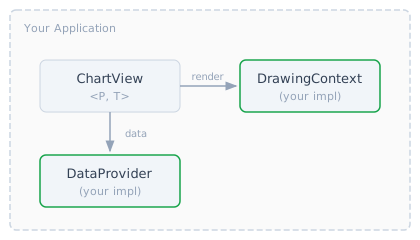
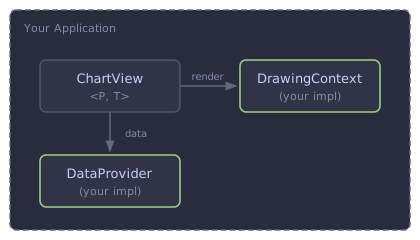
You provide two things:
DataProvider— supplies candlestick data (see Data Providers)DrawingContext— a 2D drawing backend for your platform
ChartView handles everything else: script compilation, execution, layout, rendering, and user interaction.
Creating a ChartView
use openpine_chart::{ChartView, ChartEvent, Size, Theme};
use openpine_vm::TimeFrame;

let mut cv = ChartView::new(
    provider,                        // impl DataProvider
    |fut| { tokio::spawn(fut); },    // async task spawner
    "NASDAQ:AAPL",                   // symbol
    TimeFrame::days(1),              // timeframe
    Size { width: 800.0, height: 600.0 },
    move |event| {                   // event callback
        match event {
            ChartEvent::Draw => { /* trigger a repaint */ }
            ChartEvent::EditScript { tag, id } => { /* open editor */ }
            ChartEvent::RemoveScript { tag, id } => { /* confirm removal */ }
            _ => {}
        }
    },
);

cv.set_theme(Theme::dark());  // or Theme::light()
cv.set_locale("en");
Generic Parameters
ChartView<P, T> is generic over:
| Parameter | Description |
|---|---|
P: DataProvider | Your candlestick data source |
T: Clone + PartialEq | A user-defined "tag" type attached to each script. Use String for script names, a UUID, or () if you don't need tags. |
The tag lets you identify scripts in your domain model without tracking ScriptId values directly.
Implementing DrawingContext
Implement the DrawingContext trait for your rendering platform (Canvas 2D, Skia, Cairo, etc.):
use openpine_chart::*;
use openpine_vm::visuals::{Color, FontFamily, TextFormatting};

struct MyCanvas { /* your platform context */ }

impl DrawingContext for MyCanvas {
    // Canvas operations
    fn clear_rect(&mut self, rect: Rect) { /* ... */ }

    // Colors & styles
    fn set_fill_color(&mut self, color: Color) { /* ... */ }
    fn set_stroke_color(&mut self, color: Color) { /* ... */ }
    fn set_line_width(&mut self, width: f64) { /* ... */ }
    fn set_line_dash(&mut self, pattern: &[f64]) { /* ... */ }
    fn set_fill_linear_gradient(
        &mut self, x0: f64, y0: f64, x1: f64, y1: f64, stops: &[(f64, Color)],
    ) { /* ... */ }

    // Text
    fn set_font(&mut self, size: f64, formatting: TextFormatting, family: FontFamily) { /* ... */ }
    fn set_text_align(&mut self, align: TextAlign) { /* ... */ }
    fn set_text_baseline(&mut self, baseline: TextBaseline) { /* ... */ }
    fn fill_text(&mut self, text: &str, x: f64, y: f64) { /* ... */ }
    fn measure_text(&self, text: &str) -> f64 { /* ... */ 0.0 }

    // Paths
    fn begin_path(&mut self) { /* ... */ }
    fn move_to(&mut self, x: f64, y: f64) { /* ... */ }
    fn line_to(&mut self, x: f64, y: f64) { /* ... */ }
    fn close_path(&mut self) { /* ... */ }
    fn arc(&mut self, x: f64, y: f64, radius: f64) { /* ... */ }
    fn arc_to(&mut self, x1: f64, y1: f64, x2: f64, y2: f64, radius: f64) { /* ... */ }
    fn stroke(&mut self) { /* ... */ }
    fn fill(&mut self) { /* ... */ }

    // Shapes
    fn fill_rect(&mut self, rect: Rect) { /* ... */ }
    fn stroke_rect(&mut self, rect: Rect) { /* ... */ }

    // Clipping (optional — default is no-op)
    fn set_clip(&mut self, rect: Option<Rect>) { /* ... */ }
}
set_clip(Some(rect)) restricts drawing to the given rectangle. A subsequent set_clip(Some(other)) should replace the previous clip (not intersect). set_clip(None) removes the clip entirely.
Reference implementation: See the Canvas 2D backend used in the web playground.
Managing Scripts
Adding Scripts
let id = cv.add_script(pine_source, "my-indicator".to_string());Scripts compile and execute asynchronously. The chart will fire ChartEvent::Draw once the script produces output. Use the callback variant to handle errors:
let id = cv.add_script_with_complete(pine_source, tag, |result| {
    match result {
        Ok(()) => println!("Script ready"),
        Err(e) => eprintln!("Script failed: {e}"),
    }
});
Removing Scripts
cv.remove_script(id);
// or remove all:
cv.remove_all_scripts();
Querying Scripts
// All scripts currently on the chart
let scripts: Vec<(String, ScriptId)> = cv.scripts();

// Find a script by its tag
if let Some(id) = cv.script_id_for_tag(&"my-indicator".to_string()) {
    // ...
}
Rendering
Call render in your paint/draw callback:
fn on_paint(cv: &ChartView<MyProvider, String>, canvas: &mut MyCanvas) {
    cv.render(canvas);
}
The chart fires ChartEvent::Draw whenever it needs a repaint (new data arrived, script finished, user scrolled, etc.). Your event handler should trigger a repaint in response.
User Interaction
Forward mouse/wheel events from your UI framework:
// Scroll/zoom
cv.on_wheel(delta, mouse_x);

// Pan by dragging
cv.on_drag(dx);  // dx in CSS pixels

// Hover (updates crosshair + cursor)
cv.on_mouse_move(x, y);

// Click (triggers toolbar button actions)
cv.on_mouse_down(x, y);  // returns true if a pane divider was hit
cv.on_mouse_up();
cv.on_click(x, y);

// Resize
cv.on_resize(Size { width: new_w, height: new_h });

// Cursor style (for your UI to update)
let cursor: &str = cv.cursor_at(x, y);  // "" or "ns-resize"
Events
The on_event callback receives ChartEvent<T>:
| Event | Description |
|---|---|
Draw | Chart needs a repaint |
EditScript { tag, id } | User clicked the ✎ edit button on a script's legend |
RemoveScript { tag, id } | User clicked the ✕ remove button |
ToggleVisibility { tag, id } | User toggled a script's visibility |
ShowError { tag, error } | User clicked the ⚠ error icon |
ConfigureScript { tag, id, inputs } | User clicked the ⚙ configure button |
Script Configuration
When the user clicks the ⚙ button on a script's legend, the chart fires ConfigureScript with the script's current InputInfo list. Your application should present a configuration UI and apply changes back to the chart.
Configuration Data Model
A script's configuration consists of two parts:
pub struct ScriptConfig {
    /// Visual overrides per series graph (colors, styles, visibility).
    pub series_overrides: HashMap<SeriesGraphId, SeriesGraphOverride>,
    /// Input value overrides. Key = input index, value = JSON value.
    pub input_values: HashMap<usize, serde_json::Value>,
}
Reading Current State
// Original visual state of all series graphs (before overrides)
let configs: HashMap<SeriesGraphId, SeriesGraphConfig> = cv.graph_configs(id).unwrap();

// Current user overrides
let overrides: HashMap<SeriesGraphId, SeriesGraphOverride> = cv.script_overrides(id).unwrap();

// Full config (overrides + input values)
let config: &ScriptConfig = cv.script_config(id).unwrap();
Applying Changes
cv.set_script_config(id, new_config);
// or with completion callback:
cv.set_script_config_with_complete(id, new_config, |result| { /* ... */ });
Behavior:
- If only
series_overrideschanged: the chart re-renders immediately without re-executing the script. - If
input_valueschanged: the script is aborted and re-spawned with the new values.
Building a Configuration UI
This section describes how to build a configuration dialog for script settings.
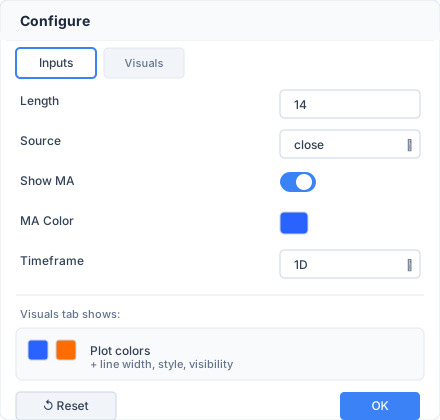
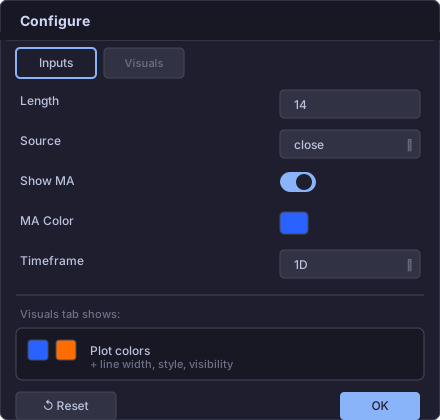
Dialog Structure
The dialog has two tabs:
| Tab | Content | Show when |
|---|---|---|
| Inputs | Script input.*() parameters | inputs.len() > 0 |
| Visuals | Series graph visual overrides (colors, styles) | graph_configs is non-empty |
The dialog should default to the Inputs tab if it has inputs, otherwise Visuals.
Footer buttons:
- Reset to Defaults — clears all overrides and resets inputs to original values.
- OK — closes the dialog (changes are applied immediately, no confirmation needed).
Inputs Tab
The ConfigureScript event provides a Vec<InputInfo>:
pub struct InputInfo {
    pub idx: usize,                       // Zero-based input index (key for input_values)
    pub title: Option<String>,            // Human-readable label
    pub tooltip: Option<String>,          // Hover text
    pub group: Option<String>,            // Grouping header (optional)
    pub kind: InputKind,                  // Type-specific value + constraints
    pub default_value: serde_json::Value, // Script's original default (for "Reset to Defaults")
}
Render each input according to its InputKind variant:
Int { value, min, max, step, options } — Number input. If options is non-empty, show a dropdown instead of a free-form input. Respect min, max, step constraints.
Float { value, min, max, step, options } — Number input with decimal step (default 0.1). Same behavior as Int regarding options, min, max.
Bool { value } — Toggle switch.
Color { value } — Color swatch + color picker popup. Color is a packed u32 in RGBA format: (R << 24) | (G << 16) | (B << 8) | A. Display as a filled rectangle with the color; click to open a color picker with hex input and alpha slider.
Str { value, options } — Text input. If options is non-empty, show a dropdown instead.
Source { value } — Dropdown with fixed options: open, high, low, close, hl2, hlc3, ohlc4, hlcc4. The value is a SourceType enum. When writing to input_values, convert to the integer discriminant: open=0, high=1, low=2, close=3, hl2=4, hlc3=5, ohlc4=6, hlcc4=7.
Enum { value, options } — Dropdown. options is Vec<(i64, String)> — (discriminant, display label) pairs. Store the discriminant in input_values.
Symbol { value } — Text input for a ticker symbol (e.g. "AAPL").
TimeFrame { value, options } — Dropdown or text input. Value is a TimeFrame. If options is non-empty, show a dropdown.
Session { value, options } — Text input or dropdown for a session string (e.g. "0930-1600").
Time { value } — Date/time picker. Value is milliseconds since epoch (i64). Convert to/from a date-time using the script's exchange timezone (available via cv.timezone()).
TextArea { value } — Multi-line text area.
Applying input changes:
let mut config = cv.script_config(id).cloned().unwrap_or_default();
// For an Int input at index 0 with value 20:
config.input_values.insert(0, serde_json::json!(20));
// For a Source input, store the integer discriminant:
config.input_values.insert(1, serde_json::json!(3)); // close
cv.set_script_config(id, config);
Changes should be applied immediately (live preview) — the chart re-executes the script and fires ChartEvent::Draw when done.
Visuals Tab
The Visuals tab shows visual overrides for each series graph. Fetch the data:
let graph_configs: HashMap<SeriesGraphId, SeriesGraphConfig> = cv.graph_configs(id).unwrap();
let overrides: HashMap<SeriesGraphId, SeriesGraphOverride> = cv.script_overrides(id).unwrap();
SeriesGraphConfig Variants
SeriesGraphConfig describes the original (pre-override) visual state. Each variant maps to a plot type:
pub enum SeriesGraphConfig {
    Plot {
        title: Option<String>,
        colors: Vec<Option<Color>>,          // Distinct color slots
        line_width: i32,
        style: PlotStyle,
        line_style: PlotLineStyle,
    },
    PlotChar {
        title: Option<String>,
        colors: Vec<Option<Color>>,
        char_value: char,
        location: Location,
        size: Size,
    },
    PlotShape {
        title: Option<String>,
        colors: Vec<Option<Color>>,
        style: Shape,
        location: Location,
        size: Size,
    },
    PlotArrow {
        title: Option<String>,
        up_colors: Vec<Option<Color>>,       // Up-arrow color slots
        down_colors: Vec<Option<Color>>,     // Down-arrow color slots
    },
    PlotCandle {
        title: Option<String>,
        colors: Vec<Option<Color>>,          // Body color slots
        wick_colors: Vec<Option<Color>>,
        border_colors: Vec<Option<Color>>,
    },
    PlotBar {
        title: Option<String>,
        colors: Vec<Option<Color>>,
    },
    BackgroundColor {
        title: Option<String>,
        colors: Vec<Option<Color>>,
    },
    Fill {
        title: Option<String>,
        colors: Vec<Option<Color>>,
    },
}
Color slots: The colors vectors contain the distinct colors used by the script (first-appearance order). None represents na / theme-default. Each slot has a corresponding position in SeriesGraphOverride::color_overrides.
SeriesGraphOverride
pub struct SeriesGraphOverride {
    pub color_overrides: Vec<Option<Color>>,
    pub line_width: Option<i32>,
    pub style: Option<PlotStyle>,
    pub line_style: Option<PlotLineStyle>,
    pub char_value: Option<char>,
    pub shape: Option<Shape>,
    pub location: Option<Location>,
    pub size: Option<Size>,
    pub line_width_overrides: Vec<Option<i32>>,
    pub line_style_overrides: Vec<Option<PlotLineStyle>>,
    pub visible: bool,  // defaults to true
}
UI Layout
The Visuals tab renders a vertical list of sections — one per series graph, ordered by SeriesGraphId. Each section shows:
- A header row with the graph title (from
SeriesGraphConfig::title) or a generated name like "Plot #1". - Color swatches — one per distinct color slot.
- Property controls — type-specific (style, width, shape, etc.).
- A visibility toggle — checkbox or switch controlling
SeriesGraphOverride::visible.
Plot (line/area/histogram)
The most complex type — each color slot has its own line style and width:
| Control | Field | Values |
|---|---|---|
| Color swatch (per slot) | color_overrides[i] | Color picker. Display as a filled rectangle with the effective color. None slots show a crosshatch or "auto" indicator. |
| Line width (per slot) | line_width_overrides[i] | Button group: 1, 2, 3, 4 px. Falls back to global line_width if unset. |
| Line style (per slot) | line_style_overrides[i] | Button group or dropdown: Solid, Dashed, Dotted. Falls back to global line_style. |
| Plot style (global) | style | Dropdown with all PlotStyle values — see table below. |
| Visibility | visible | Checkbox / toggle switch. |
PlotStyle enum values:
| Value | Description |
|---|---|
Line | Continuous line connecting bar values |
LineBr | Line with breaks at na values (no interpolation) |
StepLine | Step/staircase line |
StepLineBr | Step line with breaks at na |
Area | Filled area under the line |
AreaBr | Area with breaks at na |
Histogram | Vertical bars from zero line |
Columns | Filled columns from zero line |
Circles | Circle marker at each bar |
Cross | Cross marker at each bar |
Diamond | Diamond marker at each bar |
PlotLineStyle enum values:
| Value | Dash pattern |
|---|---|
Solid | No dashes |
Dashed | [6, 3] |
Dotted | [2, 2] |
Per-slot overrides layout: line_width_overrides and line_style_overrides are parallel arrays indexed identically to color_overrides. If the array is shorter than the number of color slots, missing entries use the global line_width / line_style override (or the config default).
Example: A plot with 3 distinct colors renders 3 rows, each with a color swatch + line width buttons + line style buttons:
[■ #2962FF] [1] [2] [3] [4]  [━━] [╌╌] [∙∙]
[■ #FF6D00] [1] [2] [3] [4]  [━━] [╌╌] [∙∙]
[■ #00BCD4] [1] [2] [3] [4]  [━━] [╌╌] [∙∙]
Style: [Line ▾]                    ☑ Visible
PlotChar (character markers)
| Control | Field | Values |
|---|---|---|
| Color swatch (per slot) | color_overrides[i] | Color picker |
| Character | char_value | Single-character text input. The character drawn on each bar. |
| Location | location | Dropdown — see Location table below |
| Size | size | Dropdown — see Size table below |
| Visibility | visible | Checkbox |
PlotShape (shape markers)
| Control | Field | Values |
|---|---|---|
| Color swatch (per slot) | color_overrides[i] | Color picker |
| Shape | shape | Dropdown — see Shape table below |
| Location | location | Dropdown — see Location table below |
| Size | size | Dropdown — see Size table below |
| Visibility | visible | Checkbox |
PlotArrow (directional arrows)
PlotArrow has two separate color groups — up-arrows and down-arrows:
| Control | Field | Notes |
|---|---|---|
| Up color swatches | color_overrides[0..up_len] | Label: "Up Color". One swatch per distinct up-arrow color. |
| Down color swatches | color_overrides[up_len..] | Label: "Down Color". Offset by up_colors.len() from the config. |
| Visibility | visible | Checkbox |
PlotCandle (OHLC candles)
PlotCandle has three color groups with a flat color_overrides layout:
| Control | Override offset | Label |
|---|---|---|
| Body color swatches | 0..body_len | "Body" |
| Wick color swatches | body_len..body_len+wick_len | "Wick" |
| Border color swatches | body_len+wick_len.. | "Border" |
| Visibility | visible | Checkbox |
Where body_len = colors.len(), wick_len = wick_colors.len() from the config.
PlotBar
| Control | Field |
|---|---|
| Color swatch (per slot) | color_overrides[i] |
| Visibility | visible |
BackgroundColor (bgcolor)
| Control | Field |
|---|---|
| Color swatch (per slot) | color_overrides[i] |
| Visibility | visible |
Fill
| Control | Field |
|---|---|
| Color swatch (per slot) | color_overrides[i] |
| Visibility | visible |
Shared Enum Values
Location (for PlotChar / PlotShape):
| Value | Description |
|---|---|
AboveBar | Above the candlestick |
BelowBar | Below the candlestick |
Top | Top of the pane |
Bottom | Bottom of the pane |
Absolute | Y position from the series float value |
Size (for PlotChar / PlotShape):
| Value | Description |
|---|---|
Auto | Automatic sizing |
Tiny | Smallest |
Small | Small |
Normal | Default |
Large | Large |
Huge | Largest |
Shape (for PlotShape):
| Value | Description |
|---|---|
XCross | X shape |
Cross | + shape |
Circle | Filled circle |
Diamond | Diamond |
Square | Filled square |
TriangleUp | Upward triangle |
TriangleDown | Downward triangle |
ArrowUp | Upward arrow |
ArrowDown | Downward arrow |
Flag | Flag |
LabelUp | Label pointing up |
LabelDown | Label pointing down |
Color Picker
Each color swatch, when clicked, should open a color picker with:
- Preset palette — a grid of common colors (e.g., 6×6).
- Hex input — a text field accepting
#RRGGBBformat. - Alpha slider — 0–255 range controlling the alpha channel.
Color encoding: Colors are packed u32 values in RGBA format: (R << 24) | (G << 16) | (B << 8) | A.
// Extract components from Color
let r = color.red();     // 0–255
let g = color.green();   // 0–255
let b = color.blue();    // 0–255
let a = color.alpha();   // 0–255

// Create from components
let color = Color::from_rgba(255, 0, 0, 255); // opaque red
For display in CSS: rgba({r}, {g}, {b}, {a / 255}).
Color Override Encoding
The color_overrides array aligns with the color slots in SeriesGraphConfig:
- Single-segment types (Plot, PlotChar, PlotShape, PlotBar, BackgroundColor, Fill):
color_overrides[i]maps tocolors[i]. - PlotArrow:
color_overrides = [..up_colors | ..down_colors](concatenated). Firstup_colors.len()entries are up-arrow overrides, remaining are down-arrow. - PlotCandle:
color_overrides = [..colors | ..wick_colors | ..border_colors](concatenated).
A None entry means "keep the original color". A Some(color) entry replaces the original.
Applying Visual Changes
let mut config = cv.script_config(id).cloned().unwrap_or_default();
let ovr = config.series_overrides.entry(graph_id).or_default();

// Override the first color slot to red
ovr.color_overrides = vec![Some(Color::from_rgba(255, 0, 0, 255))];

// Change plot style to histogram
ovr.style = Some(PlotStyle::Histogram);

// Hide this series graph
ovr.visible = false;

cv.set_script_config(id, config);
Visual-only changes re-render immediately without re-executing the script.
Effective Value Resolution
When displaying the current value of a property in the UI, resolve with three-level fallback:
- Override value (from
SeriesGraphOverride) — if set, use it. - Config default (from
SeriesGraphConfig) — the script's original value. - Theme default — fallback color from the chart theme's color palette.
Reset to Defaults
To reset all overrides and inputs to their original values:
let mut config = ScriptConfig::default();
// Re-populate input_values from each InputInfo's default_value
for input in &inputs {
    config.input_values.insert(input.idx, input.default_value.clone());
}
cv.set_script_config(id, config);
This clears all series_overrides and resets inputs to script defaults, triggering a full re-execution.
Event Flow Summary
User clicks ⚙ on legend toolbar
    ↓
ChartEvent::ConfigureScript { tag, id, inputs }
    ↓
Your app opens config dialog
    ↓
Fetch current state:
  cv.graph_configs(id)     → SeriesGraphConfig per graph
  cv.script_overrides(id)  → current overrides
    ↓
User edits input or visual property
    ↓
Build ScriptConfig { series_overrides, input_values }
cv.set_script_config(id, config)
    ↓
Chart re-renders (visual-only) or re-executes (input change)
ChartEvent::Draw fires → repaint
    ↓
If inputs changed, re-fetch graph_configs (plot structure may change)
    ↓
User clicks OK → close dialog
Save snapshot for persistence
Reference implementation: See ScriptConfigDialog.vue in the web playground for a complete implementation of this UI pattern.
Switching Symbol / Timeframe
cv.set_symbol("NYSE:MSFT", TimeFrame::weeks(1));This restarts the data stream and re-executes all scripts on the new symbol/timeframe.
Persistence
Save and restore the entire chart state (viewport position, zoom level, pane ratios, all scripts with their configurations):
// Save
let snapshot = cv.save();
let json = serde_json::to_string(&snapshot).unwrap();
// Store `json` in localStorage, a file, or a database

// Restore
let snapshot: ChartSnapshot<String> = serde_json::from_str(&json).unwrap();
cv.load(snapshot);
ChartSnapshot<T> contains:
| Field | Description |
|---|---|
scroll_offset | Fractional bar index of the left edge |
bar_count | Number of visible bars (zoom level) |
pane_ratios | Height ratios for main + sub panes |
scripts | All scripts with source, tag, config, and visibility |
Scripts are re-compiled and re-executed from their saved source code when loading a snapshot.
Viewport Control
// Get/set pane height ratios ([main, sub0, sub1, ...], sum ≈ 1.0)
let ratios = cv.pane_ratios();
cv.set_pane_ratios(vec![0.6, 0.2, 0.2]);

// Scroll to a specific bar
cv.scroll_to_bar(42);

// Highlight a bar (e.g., from strategy tester click)
cv.set_highlighted_bar(Some(42));
cv.set_highlighted_bar(None);  // clear

// Read viewport state
let offset = cv.scroll_offset();
let visible_bars = cv.bar_count();
let total = cv.total_bars();